Configuring Webcam for Remote Desktop Server
To change program settings, select Preferences in the tray menu.
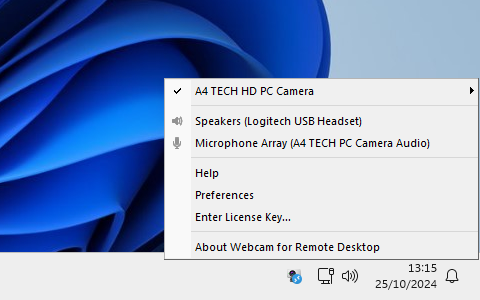
General settings
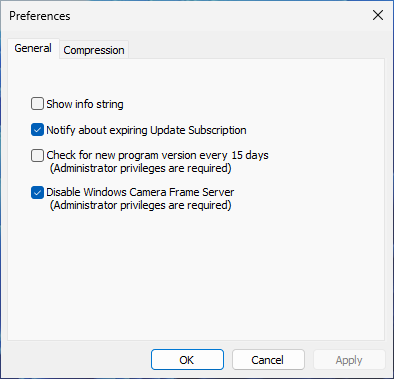
- Show info string
- If this option is set, information about resolution, color, compression, FPS and bitrate will be displayed at the top edge of video stream.
- Notify about expiring Update Subscription
- As a licensed user you have the right to get software updates for free within 12 months. After this period expires you can either continue using your last updated version for unlimited time, or renew your Update Subscription.
- Disable Windows Camera Frame Server
- A technological change made in Windows 10 Anniversary Update caused a problem where Webcam for Remote Desktop failed to work. To apply workaround, enable this checkbox.
Compression settings
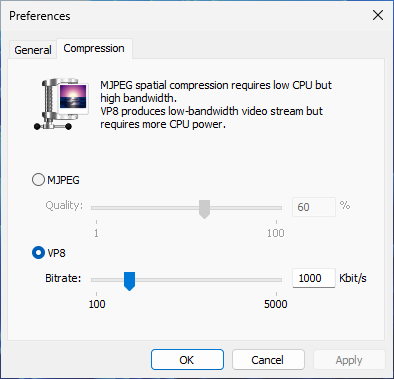
In this tab MJPEG or VP8 compression can be selected and it's quality can be adjusted.
- MJPEG
- MJPEG (Motion JPEG) is a video compression format in which each video frame is compressed separately as a JPEG image. This compression requires less CPU resources, but more network bandwidth. Also, MJPEG tolerates rapidly changing motion in the video stream, thus it is better for CCTV purposes.
- VP8
- This is a streaming video compression format which requires more CPU resources, but produces low-bandwidth and high-quality video stream. VP8 is better choice for video-calls, conferences, etc.
Audio settings
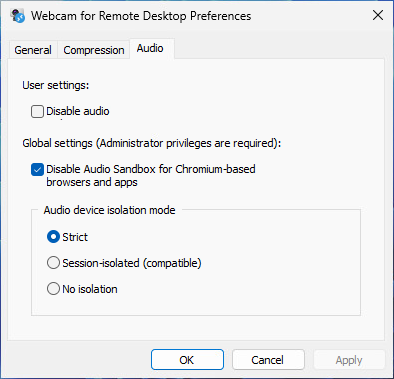
- Disable audio
- By default, the product redirects the local audio devices (speakers/headset and microphone) to the remote session. Enable this option to prevent audio devices from being redirected.
- Disable Audio Sandbox in Chromium-based browsers and apps
- Some browsers, like Google Chrome and Microsoft Edge, and some Electron-based applications (e.g., Microsoft Teams, Zoom, etc.) have the Audio Sandbox feature enabled, which breaks audio in remote sessions. This checkbox disables the Audio Sandbox for correct audio redirection.
- Audio device isolation mode
-
This setting allows you to adjust the isolation behavior for audio devices, providing different levels of isolation, compatibility, and functionality depending on your environment. Administrative rights are required to change the isolation mode.
- This setting is shared across multiple FabulaTech products, including USB for Remote Desktop, Sound for Remote Desktop, Webcam for Remote Desktop.
- By default, FabulaTech virtual audio devices redirected by Webcam for Remote Desktop are isolated on a per-session basis (Strict isolation mode). This behavior affects the Windows native audio subsystem and effectively disables native Remote Desktop audio redirection.
- Important: Changes to this setting apply only to new user sessions. Users must sign out and sign in again for the new setting to take effect.
Strict
Provides the highest level of isolation. FabulaTech audio devices are fully isolated and accessible only by the user who owns them. This ensures complete audio separation and prevents cross-session access.
- Guarantees maximum isolation
- Prevents cross-session interaction
- Important: Native Remote Desktop audio redirection is not supported in this mode
- Recommended for multi-user environments requiring strict separationSession-isolated (compatible)
Provides session-based isolation with a compatibility layer. In most cases, audio devices remain isolated per session.
- Enables coexistence of FabulaTech and native Remote Desktop audio redirection
- Maintains isolation in most scenarios
- Recommended when native audio redirection must be used alongside FabulaTech
No isolation
Disables session isolation entirely. Audio devices are shared across all logged-on users.
- Recommended only for single-user environments
- If several users are logged in, all users can access the same audio devices
- May lead to conflicts in multi-user environments